App

Using DropBox with the iPad (iOS 6) – Video
Not my best video, but it covers the basics of transferring documents, videos and photos between devices using DropBox and the iPad.
Share this:
iPad (iOS6) – Guided Access: Lock Students into one App (Video)
A quick guide/tutorial to Guided Access in iOS6.
Share this:
iPad Launch to all staff- INSET: How it worked (Resources Included)

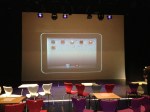
A photo taken just before the INSET began.
On Friday 28th of September we finally launched our iPad trial to all staff. There was only about 3 weeks to organise the event, but the whole thing went very well. Staff left excited, inspired and full of ideas. It really was an outstanding day!
The Build Up
After the summer holidays, I came back to school with the exciting prospect of our iPad trial. However, I realised how much work there was to do. Planning the launch to HoDs as well as organising a whole school INSET was pretty stressful. Luckily, the Asst Head (teaching and learning) was amazing and really helped organise everything. I have talked briefly about the launch to HoDs (2 weeks before the INSET for the whole school) in a previous post, so I will say very little about it here.
I really wanted the INSET to be an event. My idea was based around an Apple style keynote presentation. A few weeks before the INSET I spoke to several members of staff about ideas I had about Apps for T&L. I then asked if they would like to take part in the INSET, by showcasing not only the App, but how it can be used to enhance T&L, inspire and engage students.This would, of course involve speaking infront of the whole school. The teachers I asked jumped at the chance. The idea was to show all staff how other teachers would use the iPad by showcasing inspiring and innovative uses. This is far better than me and the Assistant Head getting up and talking at staff for 4 hours.
Once the speakers were organised I put a schedule together. To stick with the idea of a keynote event, I put together an online flyer using www.smore.com which was sent to all staff. You can see it HERE. I have removed full names.
The event was now organised. Before the INSET, the Assistant Head made some tweaks to the HoD launch presentation and we were almost good to go!
What I have not mentioned yet was how we would display the iPad screen in the theatre, where the INSET was taking place. This was perhaps the part of organising the event that was the most stressful.
My initial idea was to use an Apple TV to mirror the iPads wirelessly to the projector. Annoyingly, the Apple TV and our wireless network did not play nicely together. The IT team at school spent a week and a bit sorting it out, and to my relief they got it to work! Woo hoo! The last thing I wanted was to have the iPad wired to the projector.
What I eventually did was to use my MacBook Pro and the Reflections App to mirror my iPad. It worked slightly better for my needs as I was able to save the Keynote presentations as well as App videos on my Mac in case everything went wrong.
Before the INSET I also talked to our Theatre Manager and got him onboard with the lighting. It was very important to me that the lighting was right. The stage needed to be light, the screen needed to be dark and the audience needed to be atmospheric.
Staff was ready to go, tech was ready to go, I was ready to go.
The day of the INSET.

The theatre at 8am. One hour before launch.
The staff taking part in the INSET arrived at 8am and we checked the iPads and other bits of tech worked. Apart from a few hiccups it was fine.
At 9am the rest of the school staff arrived and I was nervous. In fact, I think all those speaking were nervous too.
First up was the Assistant Head, who went through the presentation below.
It was a great set up for the rest of the morning. The plenary slide, was obviously used at the end of the morning in the conclusion.
Next up was Tim (Physics), who showcased how he would use SolarWalk and why. Then Amy (History) and Graham went through Timeline: World War 2. A truly awesome App.
Helen (Library) then demonstrated and explained an amazing interactive magazine App that she had created herself using Adobe InDesign. She had used it for open evening and students and parents were blown away by it.
The last person before break was Jason (Music) who went through several creative music Apps. Guest post by Jason coming soon.
Break
The first App we showcased after the break was perhaps one of my favourites. Certainly one I think that can change the way iPads are used in the classroom – NearPod. This was a really interactive and fun session led by Mike (Biology). Everyone in the room were seriously blown away by the session.

Mike demonstrating NearPod.
The last person to showcase some Apps was me. I am not sure how everyone else was feeling but I was pretty nervous.
My session was on non subject specific Apps. Using Blooms Taxonomy of Apps I demonstrated 6 Apps that could be used across the curriculum. It was great to see in the afternoon INSET some teachers using the Apps I had demonstrated. Certainly put a smile on my face.
After my session, Graham concluded the INSET and we spent the last 30 minutes answering questions and talking to departments.
All-in-all an incredible morning.
When I went up to the staffroom for lunch afterwards I saw something amazing…members of staff sat around a table all with iPads, completely ignoring a massive tray of biscuits! Brilliant.
-

- The theatre at 8am. One hour before launch.
-

- Mike demonstrating NearPod.

Thanks:
I wanted to thank Mark Anderson (@ictevangelist) and Daniel Edwards (@syded06) for their advice over the last few months. Cheers fellas.
Share this:

iPad Trial 2012-2013 – A few initial notes

A few notes I have put together with some thoughts of how I will implement the iPad trial in September.
We are looking at buying a class of iPads initially and then taking it from there.
Leading up to September:
- Buy iPads from reseller
- Check they will help with the set up. Decent ones will
- Do we get protective covers?
- What charging solution?
- Which reseller?
- Get a Mac set up for iTunes
- Think about the Apps we would like to buy
- Buy an adapter so we can mirror iPad on the board
- Can we do this for the inset?
- Is the projector wireless
- Buy an Apple TV? Could be a winner? Check it works on the wireless. Again…reseller could help with this.
- http://www.youtube.com/watch?v=Dy7Q2vrU7uI
- Would be great for Skype or FaceTime
- Could use an adapter instead…but it is not wireless.
- Plan the inset – could be done after the initial 1st day.
- Produce training resources for staff
- Video – This sort of style – https://mattbritland.com/2012/06/27/miniaturecam-tilt-shift-video-ipad-app-a-quick-look-video/
- Instructions
- Set up DropBox account
- 1 per students?
- Per class?
- 1 for the school
- Email Address?
- Email for each iPad?
- Will not be workable in the trail for students having to put in their own school address all the time
- Do the apps we want to use work on the network?
- Edmodo
- Socrative
- Evernote
- Create some digital resources
- iBooks?
- PDF?
- Convert some department resources and make available on iPad/DropBox
Trial
- Show departments some example projects
- Departments can then bid for the class set
- Come up with their own ideas
- Department should have some trial iPads to play with.
- 1 per department?
- Each department will have a champion
- They will be trained.
- They will train the other members if their departments
- Ideally they will volunteer.
- All “champions” will attend meetings
- Successes
- Problems
- Ideas
- Every class member will be allocated a iPad
- They must have the same one for the length of the trial
- Sign out sheet
- They will need to tic the iPads out
- Evaluation process for each project
- Final evaluation for whole trial
Things to consider
- Make projects creatives, engaging and relevant.
- We need to use them for the more “boring” projects too
- How will we manage the classroom?
- How long will the trail go on for?
- Till Easter? This will give us time to properly evaluate?
- What do we want the outcomes to be?
- If the trial is a success do we buy more?
- 1:1?
- If it does not work, what will we do to make sure it does
- Parents open evening
- Show what we have been doing
- Get them involved and engaged.
- Keep them in the loop
- Share training videos on iTunes U?
- If we create some lesson videos, ebooks, audio podcast we can share them too.
Share this:

MiniatureCam (Tilt-Shift Video) iPad App – A Quick Look (Video)

Solar Walk iPad App – Quick Look (Video)

I have always been fascinated with the solar system and space. It may stem from me being a part-time geek and loving Star Wars when I was a kid.
On my iPad I have a few Apps that are pretty good. SkySafari, NASA HD and the Solar System ebook. However, I had not downloaded anything space related recently.
That was until yesterday. A colleague is going to be teaching astronomy next year and in the hope we buy some iPads I thought I would have a look at some Apps he could use in the classroom.
I came across Solar Walk and I have to say it is awesome. Defiantly a great looking, engaging, informative App for the classroom.
Because my current MacBook is a bit rubbish at the moment, I have used a video from the Gadget Show to give you an idea how amazing this App is. Luckily, I have just ordered a new MacBook Pro so my own video will follow soon.
Enjoy
Share this:

Plan for Year 7/1st Year ICT – Sept 2012-2013

Every year since I started teaching I have re-written schemes of work. It is not that they were not good enough when I first wrote them (although I am sure some were not up to scratch) its just that ICT moves so quickly.
Next year I have some great ideas how to mix up the curriculum and take into account the current trends in digital education.
I will be taking some of what I have been doing this year and expanding on it.
This blog post will not be massively detailed, but will include some brief notes on what I intend to teach year 7/1st years come September.
Autumn Term
During the Spring term this year my 1st years created blogs using Edublogs to blog about how young people can stay safe online. This worked out brilliantly and the students loved it, even those who do not enjoy English. Not only did it teach students how to safe safe online but it could also be used by other to learn from.
This year I am going to get my students to create a learning blog during the first few weeks. The plan is that they will update this every lesson and document what they have learnt, rather than just using it for the stay safe online project. They can then take this blog with them throughout their time in KS3 and even KS4/5 if they choose. Hopefully, after a few weeks adding a blog entry will become second nature and they will not need reminding.
1st Half Term
- Setting up student blogs
- Searching the internet
This will be ran by at the beginning of term and will be delivered by the new learning resource manager/librarian. It will also teach students how to use the library system.
Office Applications/Cloud office applications (Google docs)
I know many believe that all student know how to use office applications from birth, unfortunately they dont. There is a difference between being proficient and stumbling through the application. In order to make sure students know how to be productive users of office applications I will spend several weeks going through these applications.
As well as the usual MS Office application, students will also sign up to the Google Docs application. I want my students to be aware that there are other alternatives as well as teaching them about cloud computing. Why use the cloud? What are the pros and cons etc. Students can then decide which tools they use themselves.
Second Half term
- Continue with the office Applications/Cloud office applications
For a few weeks after half term we will continue with this project.
- The Digital World and how to stay safe
I have not quite decided what form this will take. Last year we used a blog to document what we had learnt. As we will be adding blog entries every lesson I would like to do something different. Perhaps an e-book? I want to do something exciting, engaging and immersive. I may use iPads to get the students to work in groups and create a video in iMovie. We can then put the video on our school website.
Essentially, in this projects students will learn about social networks. What they are, pros and cons and how to stay safe using them. We will also cover all other aspects of staying safe in a digital world. The thinkuknow website is a great resource. I would also advise everyone to go on the CEOP training courses, they are brilliant.
Spring Term
- Game Design using Kodu
Kodu has been such a success this year that I am going to stick with the same format. This time I am going to buy 28 XBox controllers and turn my classroom into a games studio. It’s going to be awesome.
I will also go more in-depth into how real video games are design/created and talk about Unreal Engine and CryENGINE.
In the future I would also like to start to use UDK (Unreal Development Kit), just need to find time to learn how to use it.
Summer Term
- App Design using MIT App Inventor
I did App design with my 1st years this year. However, this was coming up with ideas for Apps and then designing them and creating screen mock ups using Adobe Fireworks. It was great and the students loved it and learnt a lot about Apps, smartphones and tablets. This year I want to take it to the next level and use App Inventor.
I have looked at this before, but did not get around to learning how to use it for one reason or another. During this term I went to an old colleagues house (@alecwaters) and he showed me it in action and I was suitably impressed. My kids are going to love it. I still intend to do all the planning and mock ups but this time actually create the App.
What I have to do
- Write new schemes of work/learning
- Buy Xbox controllers (I have one)
- Buy some cheap Android handsets
Once I have written my new schemes of work I shall post it on my blog.
I hope you like what I have lined up for my students next year. If you have any questions let me know.
Share this:

Coach’s Eye iPad App – Quick Look (Video)
Share this:
iPad mirroring on your Mac with the Reflection App (Video)
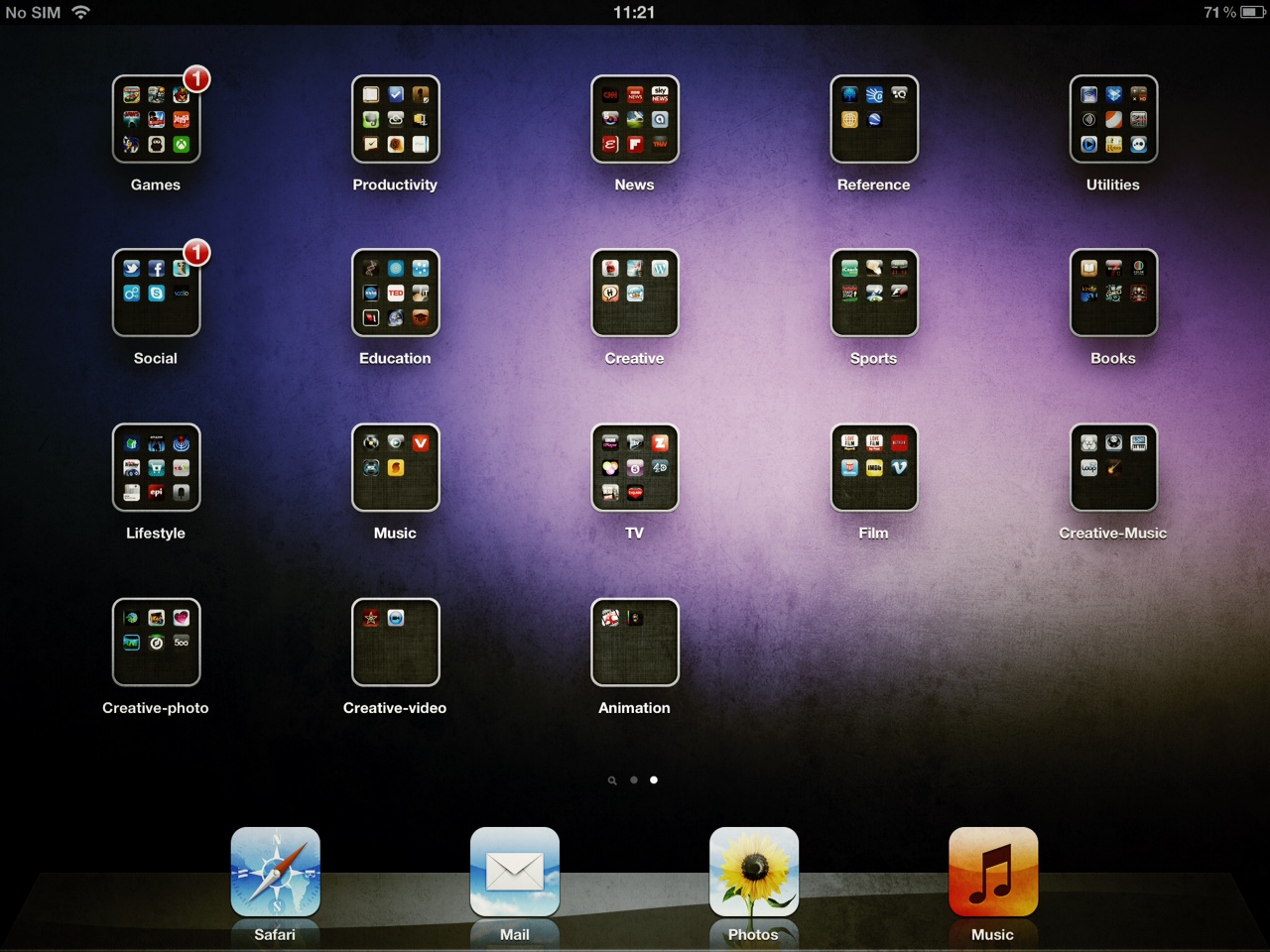
I first read about Reflection from the AppApvice website at the beginning of March. It looked great but I did not get round to downloading it.
A few days ago Gavin Smart, who I follow on Twitter recommended it on his blog.
This was the excuse I needed so I downloaded it. I must say, its really good. There have been a few issues, one of which was the App crashing when viewing photos in full screen. This does not always happen, and I have a feeling it may have something to do with my Mac.
I have always wanted a cheap and easy way to create iPad screencasts/video tutorials and I think I have found it.
The App can be downloaded from HERE and is $14.99 for a single licence.
I have knocked up a brief video overview of Reflection which you can see below. I used QuickTime to record my screen, but using something like Camtasia or Screenflow would be better if you wanted to create polished screencasts. However, you could always import your QuickTime video into one of these application afterwards.

 mattbritland.com