Apple

iPad Trial – Launching to Head of departments (Presentation)

iPad

After a lot of planning, we have just announced/launched our school iPad Trial.

At 16:15 on Monday 17th it all came together. The presentation and demonstration lasted about an hour. HoDs walked away with a shinny new iPad, lots of enthusiasm, plenty of ideas and an understanding of what we have set out to do.

They saw that our trial was well planned and had a vision and aims.

In a week and a bit we will officially launch our trial to the rest of the staff in a whole school INSET, which I am planning now.

Below is my launch presentation. This was originally created and presented on the iPad in Keynote.

I hope you find it useful and perhaps it will even give you some ideas.

Direct Link to Google Docs

iPad Trial 2012-2013 – A few initial notes

iPad

A few notes I have put together with some thoughts of how I will implement the iPad trial in September.

We are looking at buying a class of iPads initially and then taking it from there.

Leading up to September:

  • Buy iPads from reseller
    • Check they will help with the set up. Decent ones will
    • Do we get protective covers?
    • What charging solution?
    • Which reseller?
  • Get a Mac set up for iTunes
  • Think about the Apps we would like to buy
  • Buy an adapter so we can mirror iPad on the board
    • Can we do this for the inset?
    • Is the projector wireless
    • Buy an Apple TV? Could be a winner? Check it works on the wireless. Again…reseller could help with this.
    • http://www.youtube.com/watch?v=Dy7Q2vrU7uI
    • Would be great for Skype or FaceTime
      • Could use an adapter instead…but it is not wireless.
  • Plan the inset – could be done after the initial 1st day.
  • Produce training resources for staff
  • Set up DropBox account
    • 1 per students?
    • Per class?
    • 1 for the school
  • Email Address?
    • Email for each iPad?
    • Will not be workable in the trail for students having to put in their own school address all the time
  • Do the apps we want to use work on the network?
    • Edmodo
    • Socrative
    • Evernote
  • Create some digital resources
    • iBooks?
    • PDF?
    • Convert some department resources and make available on iPad/DropBox

Trial

  • Show departments some example projects
  • Departments can then bid for the class set
    • Come up with their own ideas
  • Department should have some trial iPads to play with.
    • 1 per department?
  • Each department will have a champion
    • They will be trained.
    • They will train the other members if their departments
    • Ideally they will volunteer.
  • All “champions” will attend meetings
    • Successes
    • Problems
    • Ideas
  • Every class member will be allocated a iPad
    • They must have the same one for the length of the trial
    • Sign out sheet
      • They will need to tic the iPads out
  • Evaluation process for each project
  • Final evaluation for whole trial

Things to consider

  • Make projects creatives, engaging and relevant.
  • We need to use them for the more “boring” projects too
  • How will we manage the classroom?
  • How long will the trail go on for?
    • Till Easter? This will give us time to properly evaluate?
  • What do we want the outcomes to be?
  • If the trial is a success do we buy more?
    • 1:1?
  • If it does not work, what will we do to make sure it does
  • Parents open evening
    • Show what we have been doing
    • Get them involved and engaged.
    • Keep them in the loop
  • Share training videos on iTunes U?
  • If we create some lesson videos, ebooks, audio podcast we can share them too.

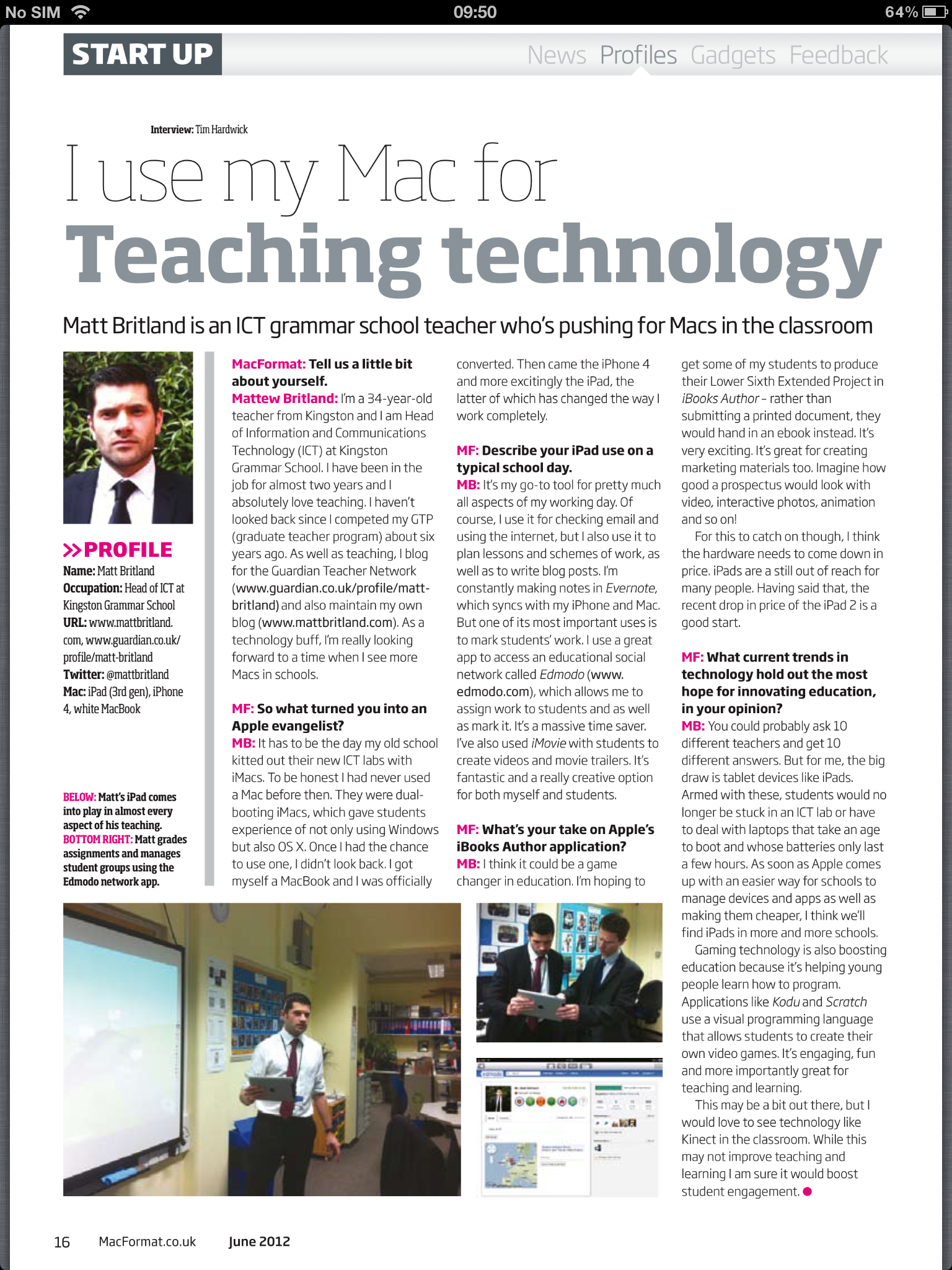
“I use my Mac for…” MacFormat Interview June 2012

iPad

I was lucky enough to do a very brief interview with MacFormat for this months magazine on what I use my Apple devices for.

Have a read below and I would also pick up the June edition as it has got some great stuff in.

iPad Apps for the Classroom (Presentation included)

iPad

We have been looking into the use of iPads in lessons and considering the possibility of buying a class set as a trial.

I am excited about this and think its a great move forward.

However, how will we use them? What Apps will we use?

As many people do not own one and some have not used one I thought it would be a good idea to put together a list of Apps we could use. Rather than simple say they need to be used for this lesson or that lesson, I thought it would be better to just say what the Apps can do. This way, people can come up with their own ideas.

This list is not definitive and there are a loads of Apps I could have mentioned. It just contain information on several Apps I think would be great for the classroom.

The Google Docs presentation is below. You can view the Sky Drive version here.

iPad mirroring on your Mac with the Reflection App (Video)

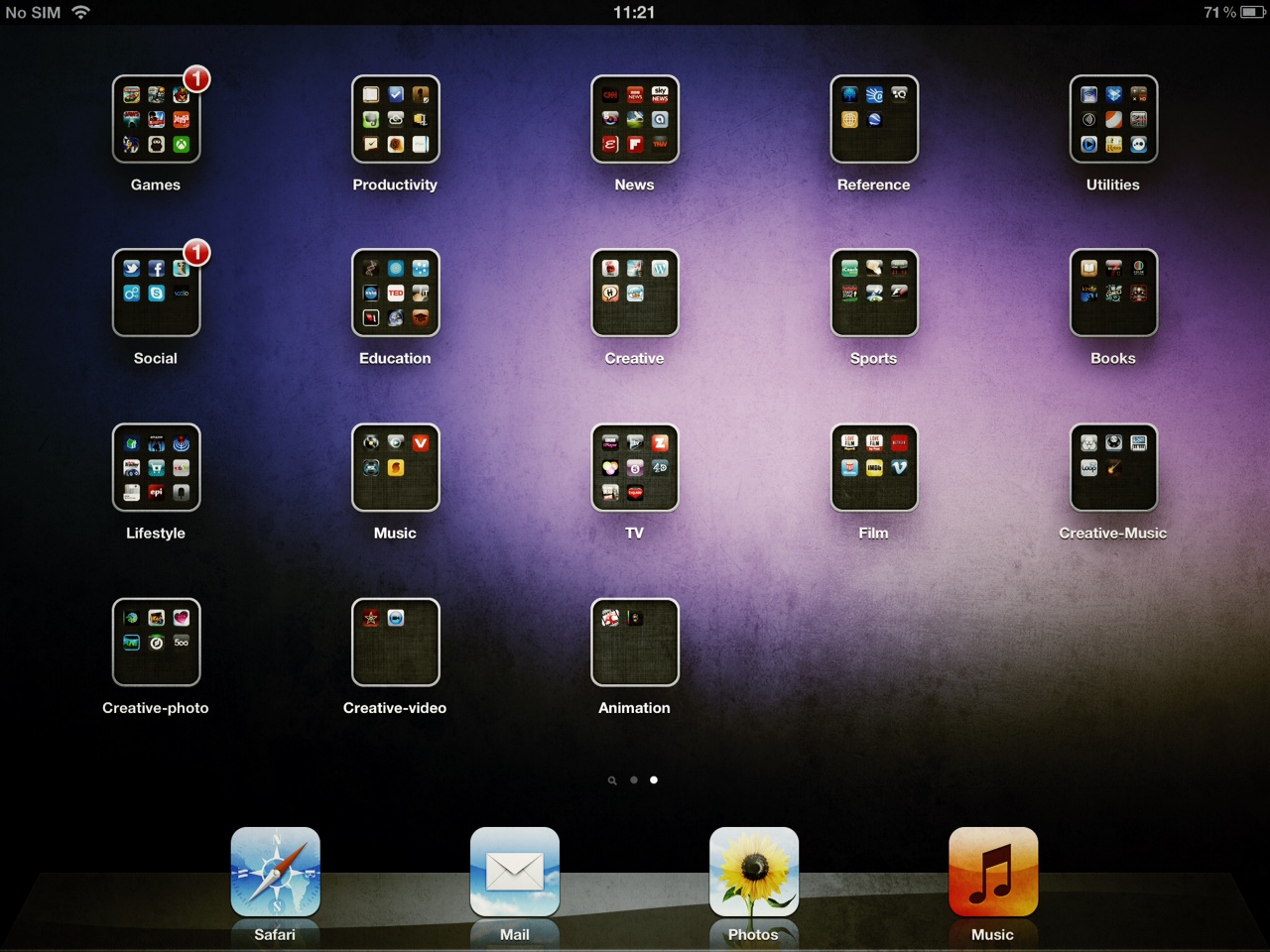
iPad screenshot

I first read about Reflection from the AppApvice website at the beginning of March. It looked great but I did not get round to downloading it.

A few days ago Gavin Smart, who I follow on Twitter recommended it on his blog.

This was the excuse I needed so I downloaded it. I must say, its really good. There have been a few issues, one of which was the App crashing when viewing photos in full screen. This does not always happen, and I have a feeling it may have something to do with my Mac.

I have always wanted a cheap and easy way to create iPad screencasts/video tutorials and I think I have found it.

The App can be downloaded from HERE and is $14.99 for a single licence.

I have knocked up a brief video overview of Reflection which you can see below. I used QuickTime to record my screen, but using something like Camtasia or Screenflow would be better if you wanted to create polished screencasts. However, you could always import your QuickTime video into one of these application afterwards.